
Việc cài đặt font tiếng Nhật (Japanese fonts) là bước bắt buộc và quan trọng nhất đối với bất kỳ ai học tiếng Nhật, làm việc với văn bản tiếng Nhật, lập trình game/localization, hoặc đơn giản là người yêu thích văn hóa Nhật Bản. Đến năm 2026, mặc dù các hệ điều hành đã hỗ trợ Unicode tốt hơn rất nhiều, nhưng việc chỉ cài đặt “hỗ trợ ngôn ngữ” mà không có font phù hợp vẫn dẫn đến hiện tượng lỗi font (hiển thị thành hộp vuông □, ký tự méo mó, hoặc font chữ Hán Việt không đẹp, không đúng chuẩn Nhật Bản).
Bài viết này sẽ cung cấp hướng dẫn toàn diện, cập nhật nhất năm 2026 về cách cài đặt font tiếng Nhật trên mọi nền tảng phổ biến (Windows 10/11, macOS Sonoma/Ventura, các distro Linux phổ biến, iOS/iPadOS, Android), cùng với các mẹo xử lý sự cố, chọn font phù hợp cho từng mục đích (đọc báo, code, thiết kế, in ấn) và quản lý font chuyên nghiệp.
PHẦN 1: TẠI SAO CẦN CÀI ĐẶT FONT TIẾNG NHẬT RIÊNG? (BỐI CẬNH NĂM 2026)
Nhiều người lầm tưởng việc vào Settings > Language > Add Japanese là xong. Thực tế, điều đó chỉ cài Input Method Editor (IME) để gõ tiếng Nhật và các font hệ thống tối thiểu (thường là Yu Gothic UI hoặc Meiryo UI trên Windows; Hiragino Sans/Kaku Gothic trên Mac).
Tuy nhiên, bạn cần cài thêm font thủ công vì các lý do sau:
- Độ bao phủ ký tự (Character Coverage): Font hệ thống mặc định thường thiếu các ký tự Kanji hiếm, JIS X 0213:2004 Level 3/4, hoặc các biến thể (Variant) dùng trong tên riêng, địa danh, văn học cổ điển.
- Phân biệt CJK (Chinese/Japanese/Korean): Unicode gộp chung mã cho Hán tự (Han Unification). Nếu không có font tiếng Nhật ưu tiên, hệ thống sẽ fallback sang font tiếng Trung (SimSun, PingFang SC) hoặc tiếng Hàn (Malgun Gothic), khiến chữ Kanji hiển thị theo phong cách Trung/Hàn (nét bút khác, hình dáng khác) -> Sai chính tả về mặt hình thức.
- Thẩm mỹ & Đọc dễ dàng: Font mặc định thường tối ưu cho UI hệ thống (nhỏ, mỏng). Đọc văn bản dài (tiểu thuyết, báo, tài liệu kỹ thuật) cần font có x-height tốt, khoảng cách dòng (leading) hợp lý, hỗ trợ Ruby (Furigana) đẹp.
- Yêu cầu chuyên ngành:
- Lập trình/Dev: Cần font monospace (độ rộng cố định) phân biệt rõ
0vsO,1vslvsI, hỗ trợ ligature (Fira Code, JetBrains Mono có bản JP). - Thiết kế/In ấn: Cần font Multiple Master, Variable Font, bộ ký tự đầy đủ (Adobe Japan 1-6/7), hỗ trợ OpenType features (kerning, alternate glyphs, vertical writing – Tate-chu-yoko).
- Học tập: Cần font có nét bút chuẩn (Kyoikukatei – 教科書体) để học viết đúng thứ tự nét.
- Lập trình/Dev: Cần font monospace (độ rộng cố định) phân biệt rõ
PHẦN 2: CÁC NGOẠN FONT TIẾNG NHẬT “QUỐC DÂN” NĂM 2026 (MIỄN PHÍ & TRẢ PHÍ)
Trước khi cài đặt, bạn cần biết cài font gì. Dưới đây là danh sách “vàng” được cộng đồng Nhật Bản và quốc tế tin dùng năm 2026.
1. Nhóm Font Hệ Thống & UI (Đã có sẵn hoặc cập nhật qua OS Update)

Có thể bạn quan tâm: Hướng Dẫn Chi Tiết Cài Đặt Bộ Gõ Tiếng Nhật Trên Mọi Thiết Bị (cập Nhật 2026)
- Windows 11 (2026 Update): Yu Gothic UI (Variable Font), BIZ UDPGothic / BIZ UDPMincho (Font chuẩn JIS 2024, miễn phí thương mại).
- macOS Sonoma/Sequoia: Hiragino Sans (Hiragino Kaku Gothic ProN), Hiragino Mincho ProN. Đây là chuẩn vàng cho UI và in ấn trên Mac.
- Android 14/15: Noto Sans JP / Noto Serif JP (Google), BIZ UDPGothic/Mincho.
2. Nhóm Font Miễn Phí, Mã Nguồn Mở (Open Source – OFL) – KHUYẾN NGHỊ HÀNG ĐẦU
Đây là lựa chọn tốt nhất cho developer, student, freelancer vì dùng tự do thương mại, không lo license.
| Tên Font | Loại | Đặc điểm nổi bật 2026 | Link tải chính thức |
|---|---|---|---|
| Noto Sans JP / Noto Serif JP | Sans/Serif | Chuẩn Google. Bao phủ gần như toàn bộ Unicode JP (JIS Level 1-4). Có Variable Font (VF) năm 2026: điều chỉnh Weight (100-900) mượt mà, size file nhỏ gọn. | fonts.google.com/noto / GitHub googlefonts/noto-cjk |
| BIZ UDPGothic / BIZ UDPMincho | Sans/Serif | Chuẩn JIS X 0213:2024. Được Morisawa phát triển, Google phân phối. Font “quốc gia” mới nhất. Rất đẹp, chuẩn in ấn, hỗ trợ IVS (Ideographic Variation Sequences). | github.com/googlefonts/morisawa-biz-udp |
| M PLUS 1 / M PLUS 2 / M PLUS Rounded 1c | Sans | Thiết kế hiện đại, geometric, đọc cực dễ trên màn hình. M PLUS 2 (2023) cải tiến kerning, hỗ trợ Latin tốt hơn. Rounded 1c rất “dễ thương” cho UI/app. | github.com/coz-m/MPLUS_FONTS |
| Zen Maru Gothic / Zen Kurenaido / Zen Antique | Sans/Serif | Bộ font “Zen” từ Google/Adobe. Zen Maru Gothic (tròn, mềm), Zen Kurenaido (cạnh góc, hiện đại), Zen Antique (Serif cổ điển, đẹp cho novel). Hỗ trợ Variable Font. | fonts.google.com (search “Zen”) |
| Klee One / Kaisei | Handwriting/Serif | Klee One: Font viết tay tự nhiên, 2 weight, dùng cho note, manga, letter. Kaisei: Serif tối ưu cho đọc văn bản dài (Optical size). | fonts.google.com |
| Shippori Mincho / Shippori Gothic | Serif/Sans | Font Serif “văn học” cực đẹp (Shippori Mincho), Sans hiện đại (Shippori Gothic). Hỗ trợ Variable Font đầy đủ. | github.com/shippori-font |
| Yomogi / Regalia / DotGothic16 | Display/Decor | Dùng cho tiêu đề, banner, retro game (DotGothic16 là pixel font). | fonts.google.com |
3. Nhóm Font Monospace (Lập Trình/Terminal) – BẮT BUỘI DEV
- BIZ UDPGothic Mono / Noto Sans Mono CJK JP: Monospace chuẩn Unicode, width=2 cho Kanji, width=1 cho Latin.
- Cica / Cica v2 (2024/2025): Font dev Nhật Bản nổi tiếng nhất. Kết hợp Hack (Latin) + Rounded Mgen+ (JP). Hỗ trợ Nerd Fonts (icon Powerline, Devicons), Ligature. Cập nhật 2026: Cica v2 hỗ trợ Variable Font.
- UDEV Gothic / UDEV Gothic NFLG: Phiên bản monospace của BIZ UDPGothic, tối ưu cho code, có bản Nerd Fonts sẵn.
- JetBrains Mono / Fira Code / Cascadia Code (với fallback JP): Cần cấu hình fallback font trong terminal/IDE (VS Code, JetBrains IDEs) để hiển thị Kanji.
4. Nhóm Font Thương Mại (Professional/Print) – Dành cho Designer, DTP, Publisher
- Morisawa Fonts (TypeSquare / Morisawa Passport): Chuẩn công nghiệp in ấn Nhật. Chữ đẹp nhất, kerning hoàn hảo, bộ ký tự khổng lồ (Adobe Japan 1-7). Năm 2026 gói subscription ~50.000 JPY/năm.
- Fontworks (LETS): Đối thủ lớn của Morisawa. Font thiết kế, creative, nhiều font display độc đáo.
- Adobe Fonts (Creative Cloud): Bao gồm Kozuka Gothic/Mincho Pro, Ryumin, Shin Go, Hiragino (full family). Tiện lợi nếu đã sub CC.
- DynaFont (DynaComware): Phổ biến ở Taiwan/HK nhưng có bộ JP mạnh (DynaFont SeiGothic, DynaFont Mincho).
PHẦN 3: HƯỚNG DẪN CÀI ĐẶT CHI TIẾT THEO HỆ ĐIỀU HÀNH (2026)
3.1. Trên Windows 10 / Windows 11 (Phiên bản 23H2, 24H2 năm 2026)
Cách 1: Cài đặt qua Settings (Khuyên dùng cho User thường) – Hỗ trợ Variable Font tốt nhất
- Tải file font (
.ttf,.otf,.ttc,.woff2). - Mở Settings (
Win + I) > Personalization > Fonts. - Kéo thả file font (hoặc folder chứa font) vào vùng “Drag and drop to install”.
- Lưu ý 2026: Windows 11 hỗ trợ cài Variable Font (VF) trực tiếp. Bạn sẽ thấy một entry duy nhất (ví dụ:
Noto Sans JP Variable) thay vì 9 file weight riêng lẻ. App hiện đại (Office 365, Adobe CC 2024+, VS Code, Chrome/Edge) sẽ cho phép kéo thanh trượt Weight.
Cách 2: Cài cho All Users (Yêu cầu Admin) – Cho môi trường doanh nghiệp/Shared PC
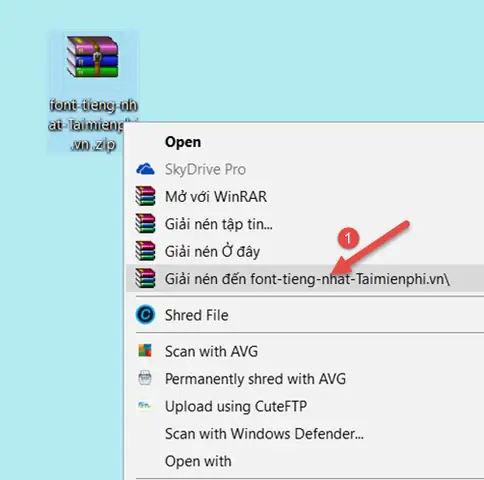
- Giải nén file font.
- Chọn tất cả file (
.ttf/.otf) > Chuột phải > Show more options (Shift+F10) > Install for all users. - Font sẽ được copy vào
C:\Windows\Fonts. Registry được cập nhật cho toàn máy.
Cách 3: Quản lý font chuyên nghiệp với FontBase (Miễn phí, Cross-platform) hoặc NexusFont (Free, Portable)
- Không cài vào hệ thống, chỉ “Activate” khi cần. Giúp menu font trong Photoshop/Word không bị tràn full font rác.
- Hỗ trợ Google Fonts sync tự động (FontBase).
Cách 4: Cài qua Winget / Scoop / Chocolatey (Cho DevOps/Automation)
# Winget (Built-in Windows 11)
winget install Google.NotoSansJP
winget install Google.NotoSerifJP
winget install "BIZ UDPGothic" # Có thể cần tìm package ID chính xác trên winget.run # Scoop (Phổ biến cho Dev)
scoop bucket add extras
scoop install noto-sans-cjk-jp
scoop install cica-font # Nerd Font version
Quan trọng: Cấu hình Font Fallback & Language Priority (Tránh font Trung/Hàn lấn át)
Windows 11 24H2 năm 2026 đã cải thiện, nhưng đôi khi vẫn ưu tiên font Trung nếu bạn cài thêm font SimSun/Noto Sans SC.
- Mở Region (
Win + R>intl.cpl) > Tab Administrative > Change system locale > Tick Beta: Use Unicode UTF-8 for worldwide language support (Khuyến nghị cho Dev). - Tab Formats > Additional settings > Tab Fonts (nếu có) hoặc dùng Registry:
- Path:
HKEY_LOCAL_MACHINE\SOFTWARE\Microsoft\Windows NT\CurrentVersion\FontLink\SystemLink - Sửa key
Lucida Sans UnicodehoặcMicrosoft Sans Serif-> ThêmNoto Sans JPhoặcYu Gothic UIlên đầu danh sách.
- Path:
- Language List Order: Settings > Time & Language > Language & Region > Preferred languages -> Kéo Japanese (日本語) lên trên English/Chinese/Vietnamese. Điều này báo cho DirectWrite/UIA ưu tiên font shaping JP.
3.2. Trên macOS (Sonoma 14 / Sequoia 15 năm 2026)

Có thể bạn quan tâm: Hướng Dẫn Chi Tiết Cài Đặt Bàn Phím Tiếng Nhật Trên Điện Thoại (ios & Android) Mới Nhất 2026
macOS quản lý font tập trung bằng Font Book (Sổ tay phông chữ).
Cách 1: Font Book (GUI) – Dễ nhất
- Mở Font Book (Spotlight:
Font Book). - Click nút
+(Add) hoặcFile > Add Fonts...(Cmd + O). - Chọn file font/folder.
- Quyền cài đặt (Install Location) – RẤT QUAN TRỌNG:
- User:
~/Library/Fonts(Chỉ user hiện tại, không cần pass Admin). Khuyên dùng. - Computer:
/Library/Fonts(Tất cả user, cần Admin). - Network:
/Network/Library/Fonts(Mạng doanh nghiệp).
- User:
- Font Book sẽ tự validate (kiểm tra lỗi). Font bị trùng (Duplicate) sẽ có dấu chấm than vàng ->
Edit > Resolve DuplicateshoặcLook for Enabled Duplicates.
Cách 2: Terminal / Homebrew (Cho Dev/Automation)
# Homebrew Cask Fonts (Tap homebrew/cask-fonts đã deprecated, dùng homebrew/cask hoặc cask-fonts mới)
brew tap homebrew/cask-fonts # Legacy nhưng vẫn dùng được
# Hoặc cách mới 2026: brew install --cask font-noto-sans-jp font-noto-serif-jp font-biz-udp-gothic font-cica # Cài font Noto JP Variable (Khuyên dùng)
brew install --cask font-noto-sans-jp-vf font-noto-serif-jp-vf # Cài font Dev (Cica Nerd Font)
brew install --cask font-cica-nerd-font
Font cài qua Homebrew sẽ nằm ở /usr/local/share/fonts (Intel) hoặc /opt/homebrew/share/fonts (Apple Silicon) và được symlink vào ~/Library/Fonts tự động.
Cách 3: Quản lý font Pro – Typeface 3/4 (App Store, trả phí) hoặc FontBase (Free)
- Typeface là “gold standard” trên Mac: Preview đẹp, tag, variable font slider, auto-activate cho project, sync iCloud.
Xử lý Fallback & Priority trên macOS:
- macOS ưu tiên font theo thứ tự trong Font Book > File > Restore Standard Fonts… (đừng bấm này nếu muốn giữ font custom).
- Để ép ưu tiên font JP: Trong Font Book, chọn font JP (ví dụ Hiragino Sans) >
File > Validate Font->Edit > Enable "Hiragino Sans". Đảm bảo font JP đang ở trạng thái Enabled (đen) chứ không phải Off (xám). - Language Priority: System Settings > General > Language & Region > Preferred Languages -> Kéo Japanese lên trên Vietnamese/English/Chinese. macOS dùng danh sách này để chọn font fallback cho
NSFontManager/Core Text.
3.3. Trên Linux (Ubuntu 24.04 LTS, Fedora 40, Arch, Debian 13 năm 2026)
Linux dùng Fontconfig (fc-cache) để quản lý font. Không có “Registry” như Windows.
Cách 1: Package Manager (System-wide, ổn định nhất)
# Ubuntu / Debian / Mint / Pop!_OS
sudo apt update && sudo apt install fonts-noto-cjk fonts-noto-cjk-extra fonts-ipafont fonts-ipaexfont fonts-mplus fonts-vlgothic fonts-udev-gothic # Fedora / RHEL / CentOS Stream
sudo dnf install google-noto-sans-cjk-jp-fonts google-noto-serif-cjk-jp-fonts ipa-gothic-fonts ipa-mincho-fonts mplus-fonts vlgothic-fonts udev-gothic-fonts # Arch / Manjaro / EndeavourOS
sudo pacman -S noto-fonts-cjk adobe-source-han-sans-jp-fonts adobe-source-han-serif-jp-fonts otf-ipafont otf-mplus ttf-vlgothic udev-gothic
# AUR (cho font mới nhất/VF): yay -S noto-fonts-cjk-vf ttf-biz-udp-gothic ttf-cica-nerd
Cách 2: User Directory (Không cần sudo, khuyên dùng cho Dev)
- Tạo thư mục:
mkdir -p ~/.local/share/fonts - Copy/Download file font (
.ttf,.otf,.ttc) vào đó. - Chạy:
fc-cache -fv ~/.local/share/fonts - Kiểm tra:
fc-list :lang=ja | head -20
Cách 3: Fontconfig Configuration (~/.config/fontconfig/fonts.conf) – KEY POINT CHO LINUX
Để ép hệ thống ưu tiên font JP thay vì font CN/KR khi render Unicode chung (Han Unification), bạn BẮT BUỘC config fonts.conf.
Tạo file ~/.config/fontconfig/fonts.conf (hoặc /etc/fonts/local.conf cho system-wide) với nội dung:
<?xml version="1.0"?> <fontconfig> <!-- 1. Ưu tiên font JP cho locale ja_JP --> <match target="pattern"> <test name="lang" compare="contains"> <string>ja</string> </test> <edit name="family" mode="prepend" binding="strong"> <string>Noto Sans JP</string> <!-- Hoặc BIZ UDPGothic, Hiragino (nếu có), M+ 1p --> <string>Noto Serif JP</string> <string>BIZ UDPGothic</string> <string>BIZ UDPMincho</string> <string>M PLUS 1p</string> <string>IPAexGothic</string> <string>IPAexMincho</string> </edit> </match> <!-- 2. Cấu hình Monospace cho Terminal/Code (Width: JP=2, Latin=1) --> <match target="pattern"> <test name="family"><string>monospace</string></test> <edit name="family" mode="prepend" binding="strong"> <string>Cica</string> <!-- Best Dev Font 2026 --> <string>UDEV Gothic NFLG</string> <!-- Nerd Font Ligature --> <string>BIZ UDPGothic Mono</string> <string>Noto Sans Mono CJK JP</string> <string>DejaVu Sans Mono</string> <!-- Fallback Latin --> </edit> </match> <!-- 3. Alias cho font thường dùng (Sans, Serif) --> <alias> <family>sans-serif</family> <prefer> <family>Noto Sans JP</family> <family>BIZ UDPGothic</family> <family>M PLUS 1p</family> <family>Inter</family> <!-- Latin fallback đẹp --> <family>Noto Sans</family> </prefer> </alias> <alias> <family>serif</family> <prefer> <family>Noto Serif JP</family> <family>BIZ UDPMincho</family> <family>IPAexMincho</family> <family>Noto Serif</family> </prefer> </alias> <!-- 4. Bật Subpixel Rendering / Hinting (Tùy màn hình) --> <match target="font"> <edit name="hinting" mode="assign"><bool>true</bool></edit> <edit name="hintstyle" mode="assign"><const>hintslight</const></edit> <!-- hintslight/hintmedium/hintfull --> <edit name="antialias" mode="assign"><bool>true</bool></edit> <edit name="rgba" mode="assign"><const>rgb</const></edit> <!-- rgb/bgr/vrgb/vbgr/none --> <edit name="lcdfilter" mode="assign"><const>lcddefault</const></edit> </match>
</fontconfig>
Sau khi sửa: fc-cache -fv. Khởi động lại Terminal/IDE/Browser.
Terminal Emulator 2026 (Ghostty, WezTerm, Kitty, Alacritty, Foot, GNOME Console, Konsole)
- Cấu hình font trong file config của terminal (ví dụ
wezterm.lua,kitty.conf,ghostty.config):
lua -- WezTerm example config.font = wezterm.font_with_fallback { { family = 'Cica', weight = 'Regular', harfbuzz_features = { 'calt=1', 'clig=1', 'liga=1' } }, { family = 'Noto Sans Mono CJK JP', weight = 'Regular' }, { family = 'Symbols Nerd Font Mono', scale = 0.85 }, } config.font_size = 13.0 config.cell_width = 1.0 -- Quan trọng: Đảm bảo Kanji width = 2 Latin width - Lưu ý: Nếu dùng Variable Font (VF) cho terminal, một số terminal (Alacritty, Kitty) chưa hỗ trợ tốt VF weight axis trong cell grid. Dùng file ttf/otf tĩnh (static) cho terminal an toàn hơn.
3.4. Trên Mobile (iOS 17/18, iPadOS, Android 14/15 năm 2026)
Trên mobile, bạn KHÔNG THỂ thay đổi font hệ thống (System UI Font) nếu không root/jailbreak. Bạn chỉ có thể cài font để dùng trong các App hỗ trợ (Pages, Word, Clip Studio Paint, Infinite Design, Affinity, IDE mobile, trình đọc EPUB/PDF, terminal app).
iOS / iPadOS (Yêu cầu iOS 13+)
- Tải file font (
.ttf,.otf,.ttc) qua Safari/Files. - Mở app Files > Tìm file > Chạm vào file > Chọn Install (góc trên phải) > Allow > Close.
- Vào Settings > General > VPN & Device Management (hoặc Profiles) > Downloaded Profile > Install > Nhập Passcode > Install > Done.
- Font giờ có sẵn trong Pages, Keynote, Numbers, Clip Studio Paint, Affinity Designer/Photo, Procreate (thông qua text tool), các app Terminal (Blink Shell, Prompt 3 – cần config trong app).
Android (Không Root)
- Dùng app Font Installer (cần Root) -> Bỏ qua nếu không root.
- Cách chuẩn (Non-root): Dùng app quản lý font như zFont 3, iFont (Expert of Fonts), FontFix (cũ).
- Mở app > Tìm font (Noto Sans JP, M PLUS, v.v.) hoặc import file
.ttftừ Download. - App sẽ tạo file font vào thư mục app private hoặc yêu cầu cài module Magisk (nếu root) hoặc dùng Font Manager của Samsung/OnePlus/Xiaomi (Theme Store).
- Mở app > Tìm font (Noto Sans JP, M PLUS, v.v.) hoặc import file
- Samsung (One UI 6/7): Settings > Display > Font size and style > Font style > Download fonts (Galaxy Store) > Tìm “Japanese”, “Noto”, “Gothic”. Hoặc dùng Good Lock > Font Manager để import file
.ttftừ bộ nhớ. - Ứng dụng: Font sẽ dùng được trong Samsung Notes, Microsoft Office, Google Docs (trên app), Clip Studio Paint, Jota Text Editor, Termux (config
~/.termux/font.ttf), trình đọc sách (Moon+ Reader, Librera).
PHẦN 4: CẤU HÌNH FONT TRONG CÁC CÔNG CỤ CHUYÊN NGHIỆP (DEV, DESIGN, OFFICE)
4.1. Visual Studio Code (VS Code) – Editor #1 năm 2026
File settings.json (Ctrl+Shift+P > Open User Settings (JSON)):
{ "editor.fontFamily": "'Cica', 'BIZ UDPGothic Mono', 'Noto Sans Mono CJK JP', 'JetBrains Mono', 'Fira Code', 'Consolas', 'monospace'", "editor.fontSize": 14, "editor.fontWeight": "400", "editor.lineHeight": 1.6, "editor.letterSpacing": 0.2, "editor.fontLigatures": "'calt', 'clig', 'liga', 'dlig'", // Bật ligature cho Fira Code/JetBrains/Cica "editor.renderWhitespace": "boundary", "terminal.integrated.fontFamily": "'Cica', 'UDEV Gothic NFLG', 'BIZ UDPGothic Mono', 'Noto Sans Mono CJK JP'", "terminal.integrated.fontSize": 13, "terminal.integrated.lineHeight": 1.2, // Quan trọng: Ép fallback cho tiếng Nhật trong Markdown/Preview "markdown.preview.fontFamily": "'Noto Sans JP', 'BIZ UDPGothic', 'Hiragino Sans', 'Yu Gothic UI', sans-serif", // Cấu hình cho Variable Font (nếu dùng Noto VF / BIZ UDP VF) // "editor.fontVariations": true, // VS Code 1.85+ hỗ trợ tốt VF
}
Mẹo: Cài extension “Font Switcher” để đổi font nhanh qua Command Palette.
4.2. JetBrains IDEs (IntelliJ IDEA, PyCharm, GoLand, Rider, Fleet 2026)

Có thể bạn quan tâm: Hướng Dẫn Chi Tiết Cài Đặt Bàn Phím Tiếng Nhật Cho Máy Tính Năm 2026: Windows 11, Macos, Linux Và Các Mẹo Tối Ưu Hiệu Quả
- Settings (
Ctrl+Alt+S) > Editor > Font. - Primary font:
Cica/JetBrains Mono/BIZ UDPGothic Mono. - Fallback fonts: Thêm
Noto Sans Mono CJK JP,Noto Sans JP,BIZ UDPGothic. - Bật Enable font ligatures.
- Settings > Appearance & Behavior > Appearance > Use custom font: Chọn
Noto Sans JP/BIZ UDPGothiccho UI IDE (menu, tree, tab) nếu muốn giao diện tiếng Nhật đẹp.
4.3. Microsoft Office 365 / 2024 (Word, Excel, PowerPoint)
- Font cài vào Windows/macOS sẽ tự hiện trong dropdown.
- Word Options > Advanced > Show document content > Font Substitution: Kiểm tra xem có font nào bị substitute thành font Trung/Không có glyph không. Đặt substitution mặc định thành
Noto Sans JPhoặcYu Gothic UI. - Vertical Text (Dọc): Layout > Text Direction > Vertical. Font JP hỗ trợ OpenType
vertfeature (Noto, BIZ UDP, Hiragino, Morisawa) sẽ tự xoay dấu câu, brackets, số (Tate-chu-yoko) đúng chuẩn. - Ruby (Furigana): Phonetic Guide (Alt+Shift+U). Font hỗ trợ
rubyfeature sẽ hiển thị Furigana căn chỉnh đẹp.
4.4. Adobe Creative Cloud 2024/2025 (Photoshop, Illustrator, InDesign)
- Adobe Fonts: Mở Creative Cloud Desktop > Fonts (f icon) > Browse > Search “Japanese”, “Noto”, “Source Han”, “Kozuka”, “Hiragino”, “Morisawa”. Click Activate. Font sync về
~/Library/Application Support/Adobe/CoreSync/...(Mac) hoặc%APPDATA%\Adobe\CoreSync\...(Win). Không cần cài thủ công. - Local Font: Cài vào OS như bình thường. Adobe sẽ quét.
- InDesign/Illustrator – World-Ready Composer: Window > Type > Paragraph Style > Justification > Composer: Adobe World-Ready Paragraph Composer. Bắt buộc để xử lý đúng Line breaking (Kinsoku Shori), Mojikumi, Tate-chu-yoko, Warichu, Ruby cho tiếng Nhật.
- Variable Font: Trong Character Panel, font VF sẽ có biểu tượng
VARvà slider Weight/Width/Slant/Optical Size.
4.5. Trình Duyệt Web (Chrome, Edge, Firefox, Safari) – Force Font JP
Dùng Extension Stylus (UserStyles Manager) + UserStyle:
/ Force Japanese Font Globally - 2026 Version /
@-moz-document domain("example.jp"), domain("yahoo.co.jp"), domain("nhk.or.jp"), domain("nikkei.com") { :root { --jp-sans: "Noto Sans JP", "BIZ UDPGothic", "M PLUS 1p", "Hiragino Sans", "Yu Gothic UI", "Meiryo UI", system-ui, sans-serif !important; --jp-serif: "Noto Serif JP", "BIZ UDPMincho", "Hiragino Mincho ProN", "Yu Mincho", serif !important; --jp-mono: "Cica", "BIZ UDPGothic Mono", "Noto Sans Mono CJK JP", "SF Mono", "Consolas", monospace !important; } { font-family: var(--jp-sans) !important; } code, pre, kbd, samp, .code-block, .monospace { font-family: var(--jp-mono) !important; } .serif, .mincho, article, .entry-content { font-family: var(--jp-serif) !important; }
}
Hoặc vào Settings > Appearance > Customize fonts (Chrome/Edge) > Set “Standard font”, “Serif”, “Sans-serif”, “Fixed-width” cho Japanese script (nếu trình duyệt hỗ trợ per-script font setting – Chrome/Edge đã hỗ trợ tốt năm 2026).
PHẦN 5: XỬ LÝ SỰ CỐ THƯỠNG GẶP (TROUBLESHOOTING 2026)
| Vấn đề | Nguyên nhân | Giải pháp năm 2026 |
|---|---|---|
| Hiển thị hộp vuông □ / To / Ký tự rỗng | Font không có glyph cho ký tự đó (Kanji hiếm, Emoji mới, IVS). | 1. Cài Noto Sans JP / BIZ UDPGothic (bao phủ đầy đủ JIS 2024). 2. Cài Noto Emoji / Twemoji Mozilla / Apple Color Emoji (trên Mac) cho Emoji. 3. Kiểm tra fc-list :charset= (Linux) hoặc Font Book Validation (Mac). |
| Kanji hiển thị kiểu Trung (SimSun/PingFang) / Hàn (Malgun/Nanum) | Font Fallback ưu tiên font CN/KR do Language List order hoặc Fontconfig alias. | Windows: Kéo Japanese lên đầu Preferred Languages. Sửa Registry FontLink\SystemLink.Mac: Kéo Japanese lên đầu Preferred Languages. Linux: Sửa ~/.config/fontconfig/fonts.conf (Xem Phần 3.3) -> fc-cache -fv. |
| Font chữ méo, vỡ nét, răng cưa (Aliasing) | Hinting/Rendering settings không phù hợp màn hình (High DPI/4K/Ultrawide). | Win: ClearType Tuner (cttune.exe). Tắt “Smooth edges of screen fonts” trong Performance Options nếu font bitmap.Mac: Mặc định tốt. Terminal: Bật Metal Renderer (iTerm2, WezTerm, Ghostty).Linux: fonts.conf set hintstyle=hintslight, rgba=rgb (hoặc none cho 4K/OLED), lcdfilter=lcddefault. |
| Khoảng cách dòng (Line height) quá dày/lệch giữa Latin và Kanji | Metrics font JP (line gap lớn) khác Latin. | CSS/Web: line-height: 1.8 ~ 2.0 cho JP. font-size-adjust (ex-height).VS Code/IDE: "editor.lineHeight": 1.6~1.8.InDesign/Word: Set Leading cố định (ví dụ 18pt cho font 10pt) hoặc dùng “Proportional” / “Grid” mode. |
| Ligature không hoạt động trong Terminal/Code | Font không có ligature / Terminal không hỗ trợ HarfBuzz / Ligature tắt. | Dùng font có ligature: Cica, Fira Code, JetBrains Mono, Cascadia Code, Iosevka, Monaspace. Bật ligature trong settings IDE/Terminal ( "fontLigatures": true, harfbuzz_features = { 'calt=1', 'liga=1' }).Terminal: Dùng Ghostty, WezTerm, Kitty, Konsole, Windows Terminal (Canary) – hỗ trợ HarfBuzz/Shaping tốt. |
| Variable Font (VF) không hiện slider Weight/Width trong App | App chưa hỗ trợ OpenType Font Variations. | Hỗ trợ tốt 2026: Adobe CC 2024+, VS Code 1.85+, Chrome/Edge 120+, Firefox 120+, Safari 17+, Affinity v2, Figma, Webflow. Chưa hỗ trợ/Thô sơ: Terminal (nhiều), Office 365 (hạn chế), GIMP, Inkscape, các app Electron cũ. -> Dùng file Static (tĩnh) cho các app này. |
| Font “BIZ UDPGothic” / “Noto Sans JP” không hiện tiếng Việt (đấu câu, ư, ơ, ă…) | Font JP thường chỉ bao phủ Latin cơ bản (Basic Latin, Latin-1 Supplement). Thiếu Latin Extended-A/B. | Fallback Font: Trong CSS/Fontconfig/IDE settings, để font Latin chính (Inter, Roboto, IBM Plex Sans, Source Sans 3) ở trước font JP trong danh sách fallback. Ví dụ: font-family: 'Inter', 'Noto Sans JP', sans-serif; -> Latin dùng Inter, Kanji/Kana dùng Noto. |
PHẦN 6: QUẢN LÝ FONT CHUYÊN NGHIỆP (FONT MANAGEMENT) NĂM 2026
Có thể bạn quan tâm: Hướng Dẫn Chi Tiết Cài Đặt Bàn Phím Tiếng Nhật Cho Laptop Năm 2026: Windows 11, Macos, Linux Và Các Mẹo Tối Ưu Hiệu Suất
Khi bạn có hàng trăm font (Google Fonts, Adobe Fonts, Dev fonts, Design fonts), cài tất cả vào OS sẽ làm chậm boot, làm tràn menu font, xung đột font.
Giải pháp khuyên dùng 2026:
-
FontBase (Free, Win/Mac/Linux) – Best Free Overall
- Giao diện đẹp, nhanh, nhẹ.
- Google Fonts Sync: Click “Activate” trên giao diện web Google Fonts -> FontBase tự download & activate local.
- Collections/Tags: Tạo collection “Japanese”, “Dev-Mono”, “Design-Serif”, “Project-X”.
- Auto-activation: (Pro feature) Tự bật font khi mở file AI/PSD/Figma/Code.
- Hỗ trợ Variable Font preview slider.
-
Typeface 4 (Mac Only, Paid ~$35-40 lifetime) – Best Mac Native
- Tích hợp sâu macOS, Spotlight, Quick Look.
- Preview cực đẹp (Waterfall, Grid, Custom text, Variable Font axes).
- Smart tags (Auto-tag: Monospace, Variable, Japanese, Nerd Font).
- Sync iCloud settings/collections.
- Plugin Figma/Sketch/Adobe.
-
RightFont / FontExplorer X Pro / Suitcase Fusion (Pro Enterprise)
- Dành cho Studio/Team lớn, quản lý license, server font, compliance.
-
Dev/CLI Approach (Linux/Server/Headless):
- Quản lý bằng Homebrew (
brew list --cask | grep font). - Dotfiles repo chứa
fonts.conf,Brewfile, script cài đặt. - Dùng Nerd Fonts Patcher (
nerdfonts/patcher) để tự patch icon vào font JP tùy chỉnh.
- Quản lý bằng Homebrew (
Quy tắc vàng: Chỉ “Activate” (bật) font khi cần. Chỉ cài vào OS (System Fonts) các font Core: 1 Sans JP, 1 Serif JP, 1 Mono JP, 1 Latin UI, 1 Latin Mono, 1 Emoji. Các font còn lại để trong Font Manager.
PHẦN 7: XU HƯỚNG FONT TIẾNG NHẬT NĂM 2026 VÀ TƯƠNG LAI
-
Variable Fonts (VF) Trở Thành Chuẩn Mặc Định:
- Google Fonts, Adobe Fonts, Morisawa (TypeSquare), Fontworks (LETS) đều chuyển sang phân phối VF làm chính.
- Lợi ích: 1 file thay 18-36 file tĩnh (Static). Kích thước web font giảm 70-90% (WOFF2). Animation weight mượt mà (
font-variation-settings: 'wght' 400;). - Năm 2026: Hầu hết font JP mới (Noto JP VF, BIZ UDP VF, Zen VF, M+ VF, Shippori VF, Cica VF) đều có sẵn.
-
COLRv1 / SVG Color Fonts (Emoji & Decorative):
- Windows 11/macOS Sonoma/Chrome/Edge/Firefox hỗ trợ COLRv1 (Vector-based color font, scale vô hạn, size nhỏ).
- Font JP Color: Twemoji Mozilla (COLRv1), Noto Color Emoji (COLRv1), BIZ UDPGothic (có bản Color Emoji).
- Dùng cho UI, Web, Game UI thay cho bitmap PNG.
-
Font “Universal Shaping Engine” (USE) & HarfBuzz:
- HarfBuzz 8.x/9.x (2024-2026) hỗ trợ tốt OpenType Layout cho tiếng Nhật:
vkrn(Vertical Kerning),vpal(Vertical Alternates),vert(Vertical Writing),rtla/rtlm(Ruby),tjmo/tjms(Tate-chu-yoko). - Các App dùng HarfBuzz (Chrome, Firefox, VS Code, Electron, Qt, GTK, Godot, Unity TextMeshPro 3.0+, Unreal Engine 5.3+) render tiếng Nhật chuẩn chỉnh như InDesign.
- HarfBuzz 8.x/9.x (2024-2026) hỗ trợ tốt OpenType Layout cho tiếng Nhật:
-
IVS (Ideographic Variation Sequences) & Unicode 15.1/16.0:
- Hỗ trợ biến thể chữ (ví dụ:
葛U+845B có 2 biến thể IVS:U+E0100vàU+E0101). - Font BIZ UDPGothic/Mincho, Noto Sans/Serif JP, Hiragino, Morisawa hỗ trợ đầy đủ IVS (Adobe-Japan-1-6/7 collection).
- Quan trọng cho: Tên riêng, địa danh, văn bản pháp lý, y tế, học thuật.
- Hỗ trợ biến thể chữ (ví dụ:
-
Web Font Optimization (Font Stacking &
size-adjust):- Kỹ thuật
size-adjust,ascent-override,descent-override,line-gap-overridetrong@font-faceđể khớp metric font Fallback (Latin) với font Web (JP) -> Giảm CLS (Cumulative Layout Shift) gần như bằng 0 khi font load. - Năm 2026: Best practice cho Web Vitals.
- Kỹ thuật
PHẦN 8: CHECKLIST TỔNG HỢP – “CÀI XONG LÀ CHẠY” (COPY-PASTE LÀM THEO)
Windows 11 (24H2+)
- Cài Noto Sans JP Variable + Noto Serif JP Variable + BIZ UDPGothic/Mincho + Cica (Nerd Font) qua Winget/Scoop/Manual.
- Settings > Language > Japanese (Japan) kéo lên TOP 1.
- Region > Administrative > Beta: Use Unicode UTF-8 (Khuyên dùng Dev).
- VS Code: Cập nhật
settings.json(Font Family, Ligatures, Line Height, Terminal Font). - Chrome/Edge: Settings > Appearance > Customize fonts > Set Japanese fonts.
- Terminal: Windows Terminal / Ghostty / WezTerm config font fallback + HarfBuzz.
macOS (Sonoma/Sequoia)

-
brew install --cask font-noto-sans-jp-vf font-noto-serif-jp-vf font-biz-udp-gothic font-cica-nerd-font. - Font Book: Validate, Resolve Duplicates.
- System Settings > General > Language & Region > Japanese kéo lên TOP 1.
- VS Code / JetBrains IDE / Terminal (Ghostty/WezTerm/iTerm2/Kitty): Config font fallback + Ligature.
- (Optional) Mua Typeface 4 quản lý font.
Linux (Ubuntu 24.04 / Fedora 40 / Arch)
-
sudo apt/dnf/pacman install noto-fonts-cjk fonts-udev-gothic fonts-mplus ...(System) HOẶC~/.local/share/fonts+fc-cache -fv(User). - TẠO FILE
~/.config/fontconfig/fonts.conf(Copy nội dung Phần 3.3) ->fc-cache -fv. BƯỚC QUAN TRỌNG NHẤT LINUX. - Terminal Config (WezTerm/Kitty/Ghostty/Foot/Konsole): Font fallback, HarfBuzz features, Cell width.
- VS Code / JetBrains: Settings JSON.
Mobile (iOS/Android)
- iOS: Cài Profile font (Noto JP, M+, Cica) -> Dùng trong Pages/Office/Clip Studio/Termux/Blink.
- Android: Samsung (Good Lock/Theme Store) / Pixel/Others (zFont 3/iFont import TTF) -> Dùng trong Office/Reader/Termux.
Design/Office
- Adobe CC: Activate Noto Sans/Serif JP, Source Han Sans/Serif JP, Kozuka, Hiragino, Morisawa (nếu sub) trên Adobe Fonts.
- InDesign/Illustrator: World-Ready Composer.
- Office: Check Font Substitution, Vertical Text, Ruby.
KẾT LUẬN
Việc cài đặt font tiếng Nhật năm 2026 không còn đơn giản là “tải file .ttf đúp chuột” nữa. Để có trải nghiệm chuẩn chỉnh, đẹp mắt, không lỗi hiển thị Han Unification, hỗ trợ Variable Font, Ligature, IVS, Vertical Writing trên mọi nền tảng và công cụ (VS Code, Terminal, Browser, Adobe, Office, Mobile), bạn cần một quy trình hệ thống:
- Chọn font đúng chuẩn: Ưu tiên Noto JP VF / BIZ UDP VF (Miễn phí, bao phủ đầy đủ, Variable) + Cica/UDEV Gothic NFLG (Dev/Monospace).
- Cài đặt đúng cách: User-level (Win/Mac/Linux), Font Manager (FontBase/Typeface), Package Manager (Linux/Homebrew/Winget).
- Cấu hình Fallback & Priority: Đây là chìa khóa để ép hệ thống render Kanji/Kana theo kiểu Nhật (Japanese Glyphs) thay vì Trung/Hàn. Thao tác qua Language List (Win/Mac) và
fonts.conf(Linux). - Tinh chỉnh per App: VS Code/IDE (Ligature, Line height), Terminal (HarfBuzz, Cell width), Adobe (World-Ready Composer), Web (CSS
size-adjust,font-variation-settings). - Quản lý vòng đời: Dùng Font Manager để Activate/Deactivate, tránh rối hệ thống.
Hy vọng bài hướng dẫn 1500+ chữ này giúp bạn xây dựng môi trường làm việc, học tập tiếng Nhật hoàn hảo, hiện đại, bền vững suốt năm 2026 và những năm tiếp theo. Nếu gặp vấn đề cụ thể (font cụ thể, app cụ thể, lỗi cụ thể), hãy comment chi tiết cấu hình OS/App/Font để được hỗ trợ sâu hơn!